

Searching for a way to block Gemini in Google Messages?
On a KosherOS phone, it's done for you.
The latest KosherOS system update blocks Gemini, Google's AI chatbot and image generator, inside Google Messages. No AI chats. No AI-generated images. It's built in, it's part of your KosherOS plan, and there's nothing for you to configure. It comes to every KosherOS phone from the Google Pixel 6a up.
You chose a kosher phone for a reason. Your standards shouldn't change every time an app adds a new feature.
Why AI Chat and Image Generation in Your Texting App Is a Problem
Google has been adding Gemini AI to its everyday apps, including Google Messages.
There, a Gemini chat sits right next to your regular conversations. Next to your family. Your friends. Your kids' class group chat.
- It answers anything. Any question, any topic, at any hour.
- It writes anything. Messages, replies, whatever it's asked for.
- It creates images. Type a description and Gemini makes a picture for you, right inside your texting app.
- It's always one tap away. It lives in the app you open every day.
The images are a particular concern. A picture can be made in seconds and shared in a chat just as fast.
That's exactly what many families and kosher-phone users want to avoid.
A texting app should connect you with people, not with an AI that can say or draw anything.
What You'll See After the Update
Install the update, restart your phone, and here's what changes in Google Messages:
- The Gemini button is gone. It no longer appears in Google Messages.
- Gemini is no longer a contact. You can't find it to start a new chat.
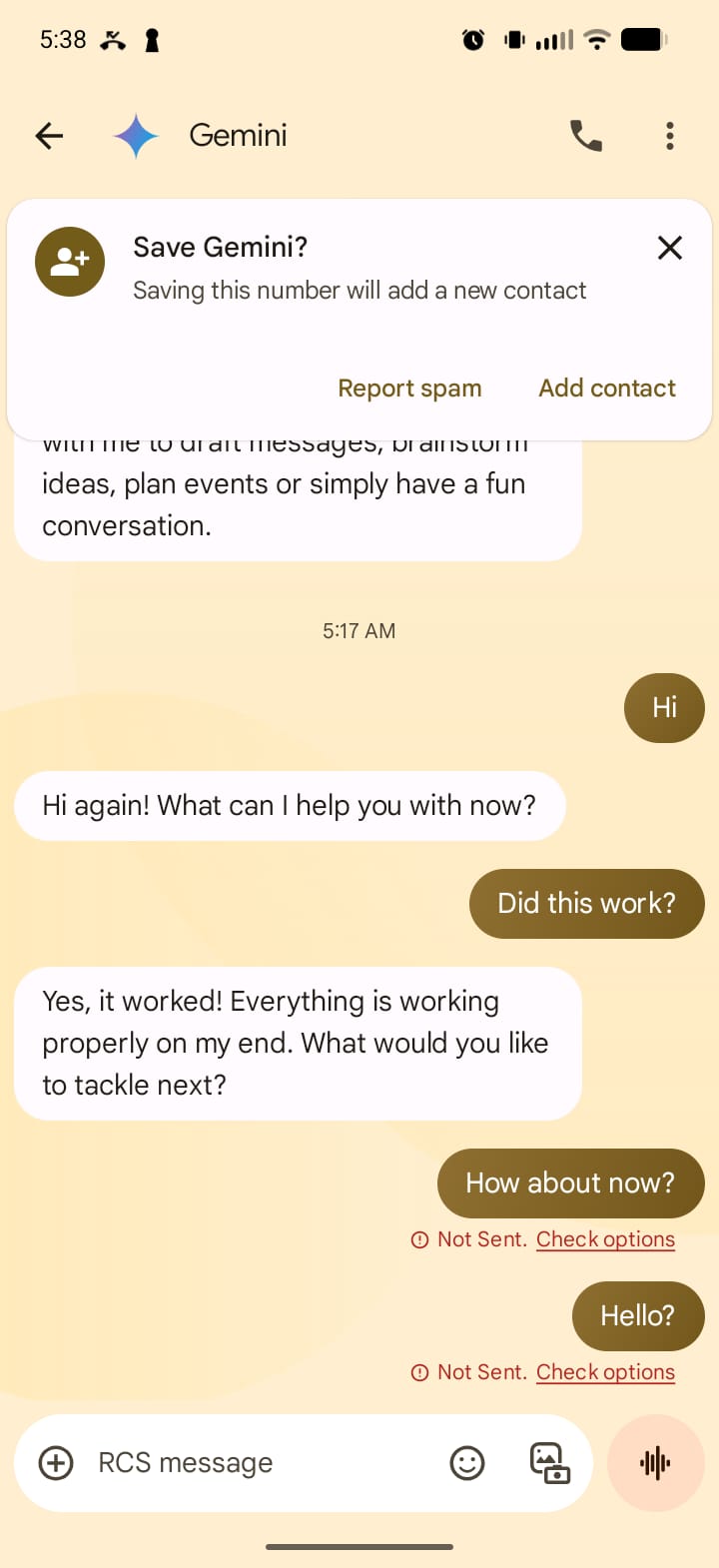
- Gemini stops answering. If someone already had a Gemini conversation, it may still be listed. But messages sent to Gemini fail to send, and Google Messages shows "Not Sent."
- No more AI image generation. With Gemini blocked, there's no way to ask it to create pictures in Google Messages.
- AI writing suggestions are off. No more AI drafting or rewriting your texts.
- AI emoji and stickers are off. No more AI-made emoji or stickers made from your photos.
The bottom line: you can't keep talking to Gemini, and you can't ask it for images.
Here's a real screenshot of a Google Messages conversation with Gemini. Before the block, Gemini answers: "Yes, it worked! Everything is working properly on my end."
After the KosherOS block, the next messages to Gemini show "Not Sent." The conversation simply stops.
Everything Else Keeps Working
Blocking Gemini doesn't break your texting app.
- Texting: Send and receive texts like always.
- Group chats: Stay connected with family, school and community groups.
- Photos: Share pictures with the people who matter.
- Modern chat features (RCS): Typing indicators, read receipts and high-quality media keep working.
You lose the chatbot. You keep your conversations.
Built Into KosherOS. Nothing to Configure.
This isn't a setting buried in a menu.
The block is built into KosherOS itself. There's no setting for the user to switch Gemini back on. Not for you, and not for a curious teenager.
Parents don't have to configure anything. No menus to dig through. No settings to re-check.
It's part of KosherOS and comes with your KosherOS plan. It arrives as a standard KosherOS system update, and we tested it on our own phones before release.
At a Glance: Google Messages After the Update
| In Google Messages | After the KosherOS update |
|---|---|
| Texting, group chats and photos | ✅ Keep working |
| Typing indicators, read receipts and high-quality media (RCS) | ✅ Keep working |
| Gemini button | Gone |
| Starting a new chat with Gemini | Not possible |
| Messages sent to Gemini | Fail to send ("Not Sent") |
| Creating images with Gemini | Not possible |
| AI writing suggestions | Off |
| AI-made emoji and stickers from your photos | Off |
| A setting to switch Gemini back on | None |
Which Phones Get It
Every KosherOS phone from the Google Pixel 6a up:
- Google Pixel 6a
- Google Pixel 7 and Kosher Google Pixel 7a
- Google Pixel 8, 8 Pro and 8a
- Kosher Google Pixel 9 and Kosher Google Pixel 9a
- Kosher Google Pixel 10a
- Google Pixel Tablet
- Kosher Moto G 5G 2024
How to Block Gemini in Google Messages
On any KosherOS phone from the Google Pixel 6a up:
- Open the system update screen on your phone.
- Install the latest KosherOS update.
- Restart your phone.
That's it. Gemini is blocked in Google Messages.
Frequently Asked Questions
How do I block Gemini in Google Messages?
On a KosherOS phone, install the latest system update from the system update screen and restart. Gemini is then blocked inside Google Messages, with nothing else to configure.
Does this stop AI image generation in Google Messages?
Yes. Gemini in Google Messages can create images from a written request. With Gemini blocked, that's gone, and AI-made emoji and stickers from your photos are switched off too.
Will my old Gemini chat disappear?
It may stay in your list of conversations. But Gemini no longer answers, and any message sent to it shows "Not Sent."
Can Gemini be switched back on from the phone?
No. The block is built into KosherOS itself, and there's no setting on the phone to switch Gemini back on.
Will texting and group chats still work?
Yes. Texting, group chats, photos and modern chat features like typing indicators, read receipts and high-quality media all keep working.
Is it included in my KosherOS plan?
Yes. The Gemini block is part of KosherOS, so it comes with your KosherOS plan.
Which phones get the Gemini block?
Every KosherOS phone from the Google Pixel 6a up: the Google Pixel 6a, 7, 7a, 8, 8 Pro, 8a, 9, 9a and 10a, the Pixel Tablet and the Moto G 5G 2024.
Keep Your Phone on Your Terms
Your phone should keep you connected with family and friends. Not with an AI that answers anything and makes pictures on request.
In Google Messages, KosherOS keeps it that way, with nothing for you to configure.
Already have a KosherOS phone? Open the system update screen, install the update and restart.
Looking for a phone that stays aligned with your values? Shop the Kosher Google Pixel 10a or the Kosher Google Pixel 9a. Both come with the Gemini block.
New to kosher phones? Start with Kosher Phones Explained, or see how Kosher Smartphones compare to Kosher Flip Phones.